Rider Guide
For riders booking with a car service that uses MyPlacard, in the rider app (iPhone) or on the web.
About the rider app
The MyPlacard rider app is how you book and manage rides with your private car service. It shows you the price before you commit, takes your payment, lets you follow your car on a map, and keeps your trip history and receipts. The same app works for every car service on MyPlacard: you enter your car service’s code, and the app takes on its name, logo and colors. Your ride is with your car service, and it sets the prices, the rules and the drivers.
Getting started
- Install the app. Download MyPlacard from the App Store.
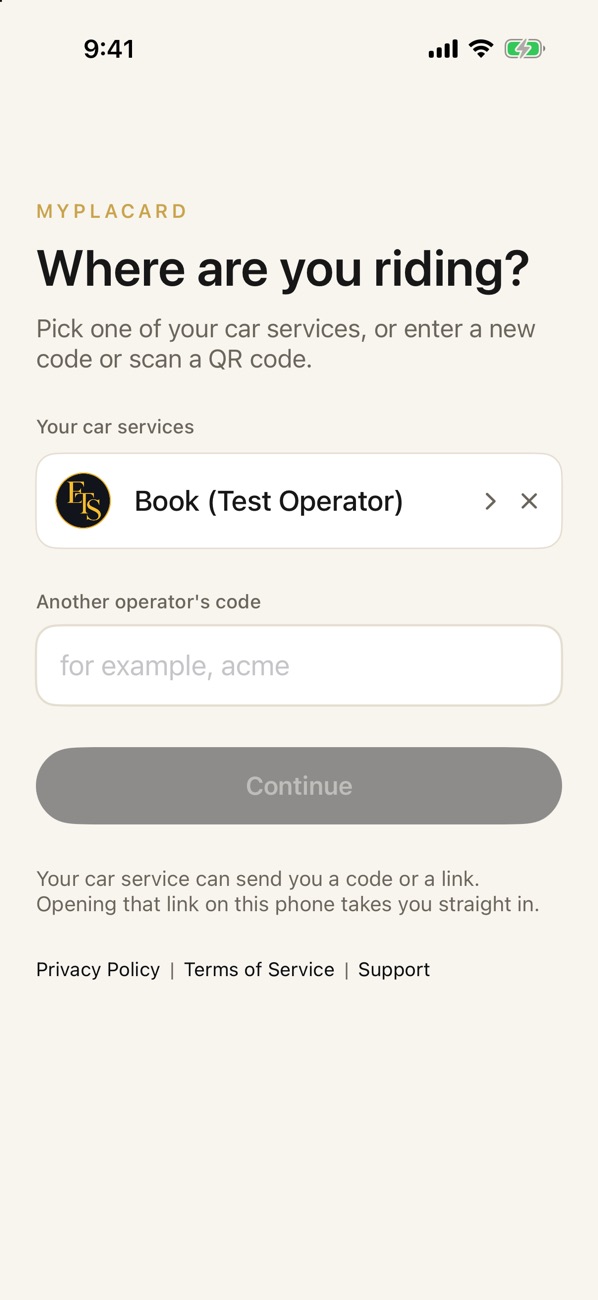
- Choose your car service. The first screen asks “Where are you riding?”. Type the code your car service gave you (for example “acme”), or scan their QR code. If your car service sent you a link, opening it on your phone takes you straight in.
- Come back easily. Car services you have used are listed under Your car services, so you can switch with one tap. The “...” menu on the home screen has Another operator if you ride with more than one.
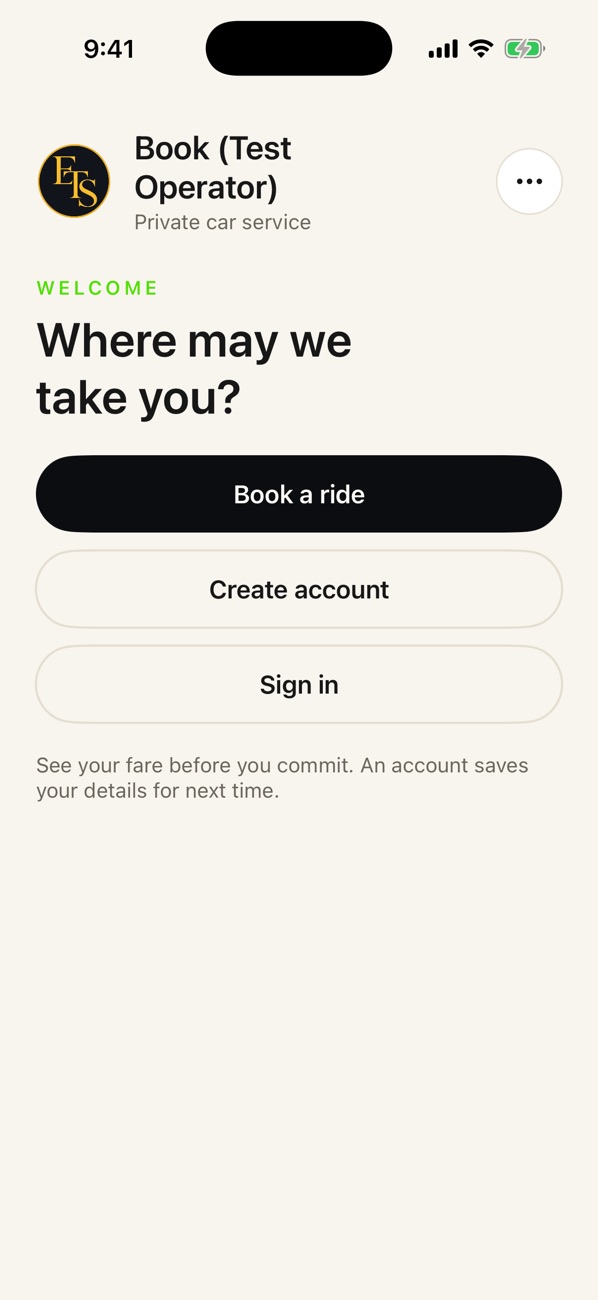
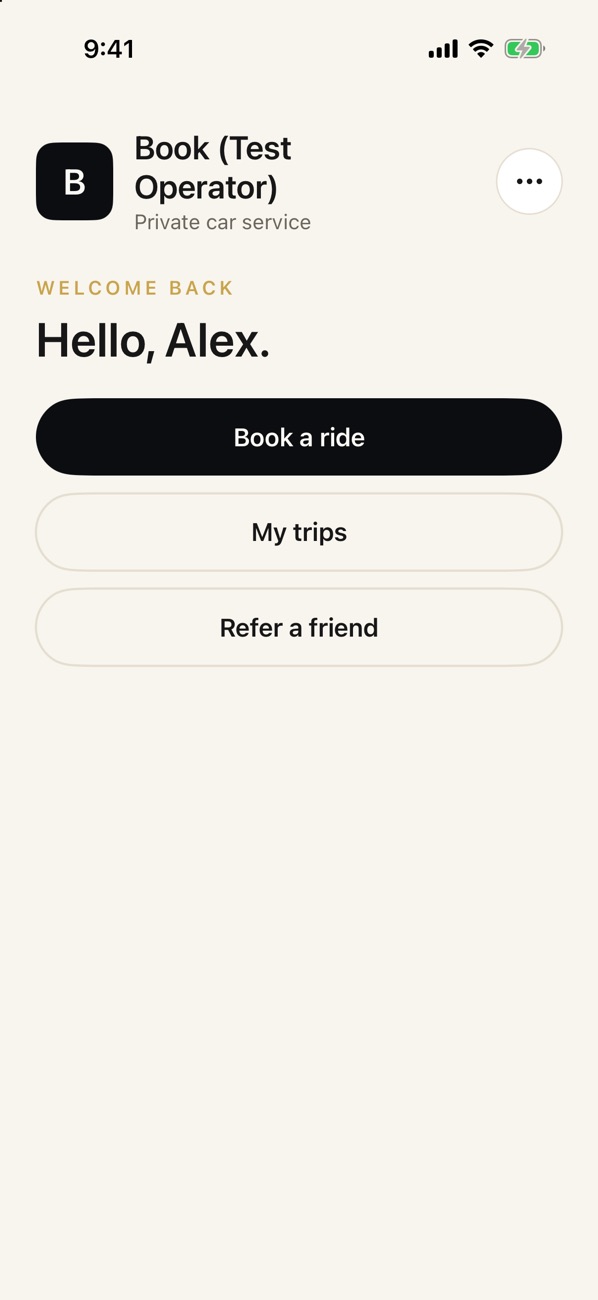
- Book now, or make an account first. On the home screen choose Book a ride (you can do this as a guest), Create account, or Sign in.
Account or guest
- As a guest you give your name and mobile phone each time you book. You can still pay, tip and follow your car. A guest has no trip list, because there is no account to find the rides by.
- With an account (your email, a password, your name and phone, and a referral code if a friend gave you one) the app remembers your details and keeps a list of your trips, receipts and a saved card. You may be sent an email to confirm your address. If you forget your password, tap Forgot password? on the sign-in screen and follow the emailed link.
Booking a ride
Tap Book a ride. You will see a map and a form. Fill it in from the top:
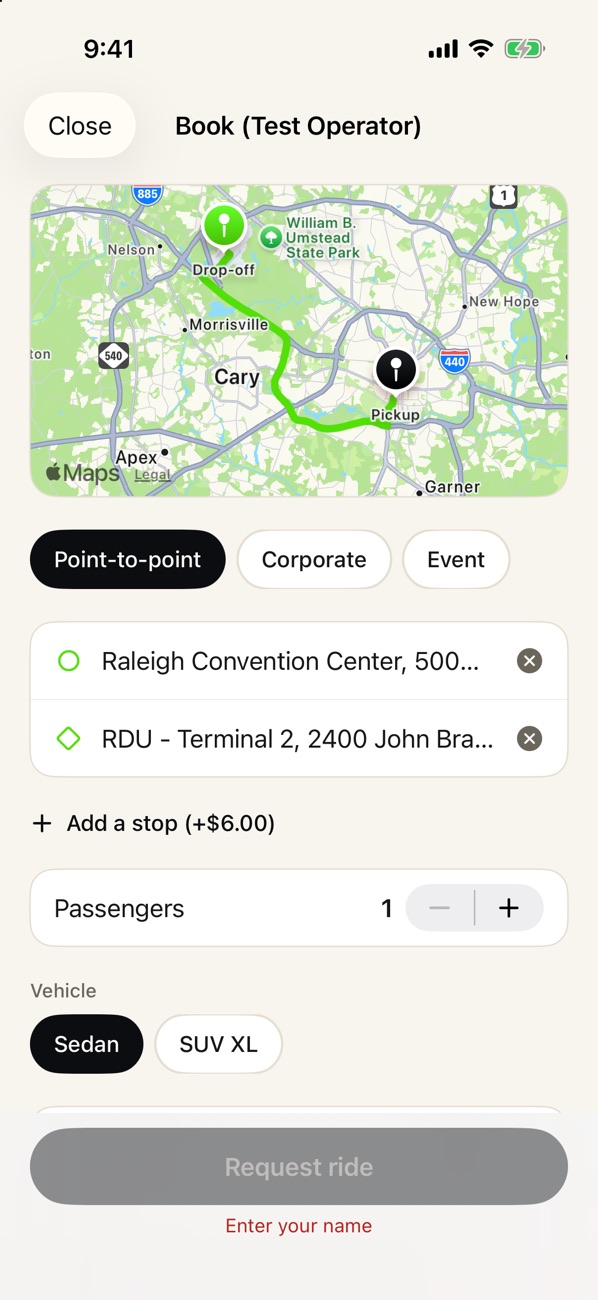
- Choose the kind of trip. Point-to-point is a normal trip from one address to another (airport trips included). Corporate and Event trips are priced by the hour.
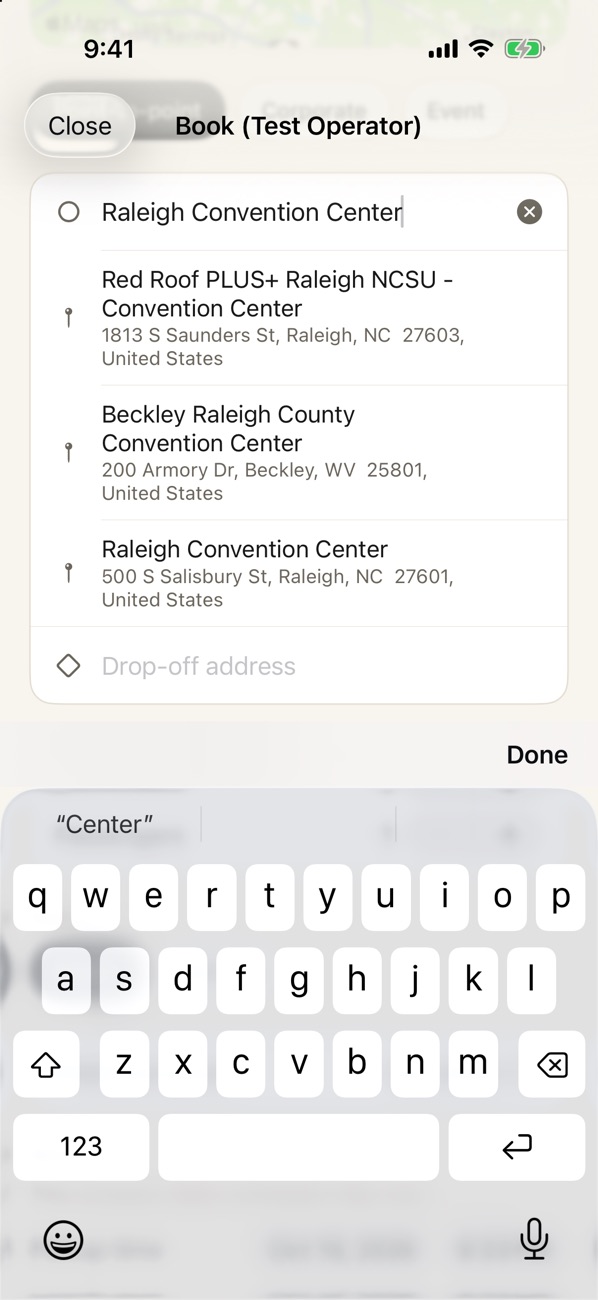
- Pickup and drop-off. Start typing an address and pick it from the suggestions. In the pickup box you can also tap Use my current location: your phone finds the street address once and fills it in. The map shows both pins and the route.
- Add a stop if you need one (if your car service charges for stops, the button shows the fee).
- Passengers. Use the + and − buttons.
- Vehicle. Choose a class, for example Sedan or SUV XL. The price changes with the class.
- Preferred driver (optional). Pick a driver you like, or leave it on Any driver. It is a request: your car service may need to send someone else, and it never changes the price.
- When. Choose Now or set a Pickup time for later. Some car services only take scheduled rides, and some need a minimum notice, and the form tells you.
- Your details. Guests enter their name and mobile phone. If you want updates, tick the box to get text messages about the ride.
- Promo code (optional). Enter it to see your discount.
As soon as both addresses are in, the app shows your fare before you commit, including any airport fee, stop fee and tax. If the Request ride button is grey, a short line under it says what is missing (“Choose your addresses to see your fare”, “Enter your name”).
Review and confirm
Tap Request ride. A “Review your ride” sheet shows the pickup and estimated drop-off time and place and the fare, with a box for notes for your driver (a gate code, the terminal, “two bags”). Nothing is booked until you confirm. Then you see Your ride is requested (or scheduled).
Booking from a website quote
If your car service offers quotes on its website, you can get a price without an account. The price is held for 24 hours. Press Book this trip (or the link in the quote email) and the booking page opens with your trip filled in and the quoted price shown. The route and price are fixed by the quote; you choose when to go, give your name and phone (or sign in) and pay as usual. If the quote has expired, the same trip is filled in so you can see today’s price. A quote is a price, not a reservation: a car is confirmed when you book. It opens in the web app; the iPhone app can’t book from a quote link yet.
Booking for someone else
You can order a car for another person, such as a guest, a client or a family member, while you pay. Turn on Booking for someone else on the booking screen (above the promo code) and enter the passenger’s name and mobile number.
- Tick the box that says you have your passenger’s OK to text them. It is required, because the passenger gets texts from the car service.
- You can’t use your own phone number for the passenger. If you are the one riding, leave the switch off.
- Book as usual. You choose the car and pay and tip exactly as you would for yourself, and your receipt comes to you.
What your passenger gets. A text with a private link. It opens a page showing the pickup, the drop-off and the time, and who booked it for them. Once a driver is assigned they see the driver’s name, photo and car, and a map of the car while it is on the way. They also get a text when the driver is assigned and when the driver is on the way, and a text if you cancel. The page shows no price, and they can’t change or cancel the ride from it. The link stops working a day after the ride ends.
Helping the driver find them. From the link page, the passenger can share their location with the driver, the same way you can for your own rides. On the web it only shares while the page stays open.
What you still get. The usual texts or notifications about your ride. In My trips the ride shows “For [name]”, and until the driver sets out you can tap Passenger to change who is riding. A new phone number gets a new link and the old one stops working. I’m riding myselfremoves the passenger.
Paying and tipping
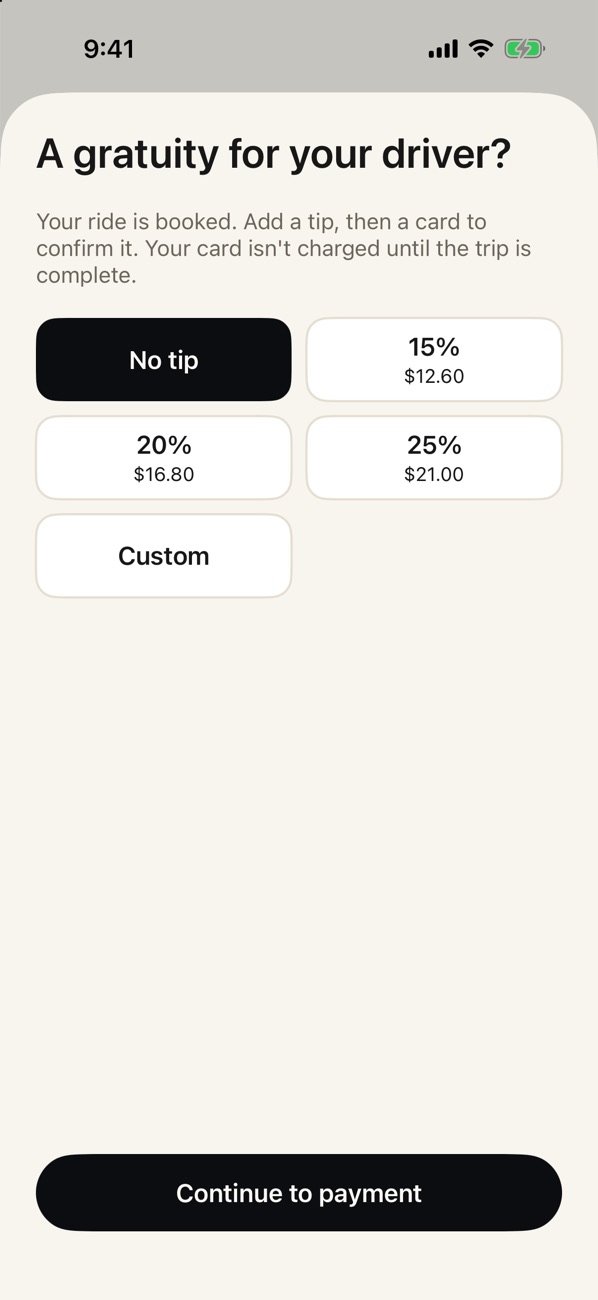
- Right after you book, the app asks for an optional tip: No tip, 15%, 20%, 25% or Custom (the percentages are worked out on the fare before tax). Tips go 100% to your driver. Tap Continue to payment.
- Enter your card in the secure card sheet. Your card is only authorized (a hold): you are not charged until the trip is complete. A trip booked far ahead is authorized closer to the pickup.
- If you have an account you can tick Save this card for next time. Next time the app asks “Use your Visa ending in 4242?”: tap Use this card, or Use a different card.
If you close the card sheet or your card is declined, your ride is still booked and shows a Pay now button; your car service may contact you.
After the trip you can add a tip (or add more) from My trips, for 30 days after a completed trip, up to a limit your car service sets. A tip added later is charged straight away.
Following your car
When a driver is assigned you get an update (a notification, and a text if you ticked that box): driver assigned, then driver on the way, then trip complete. Allow notifications when the app asks, so these arrive on your phone.
- Open Track your ride on the booked screen, or Track on an active trip in My trips. Tapping a notification opens it too.
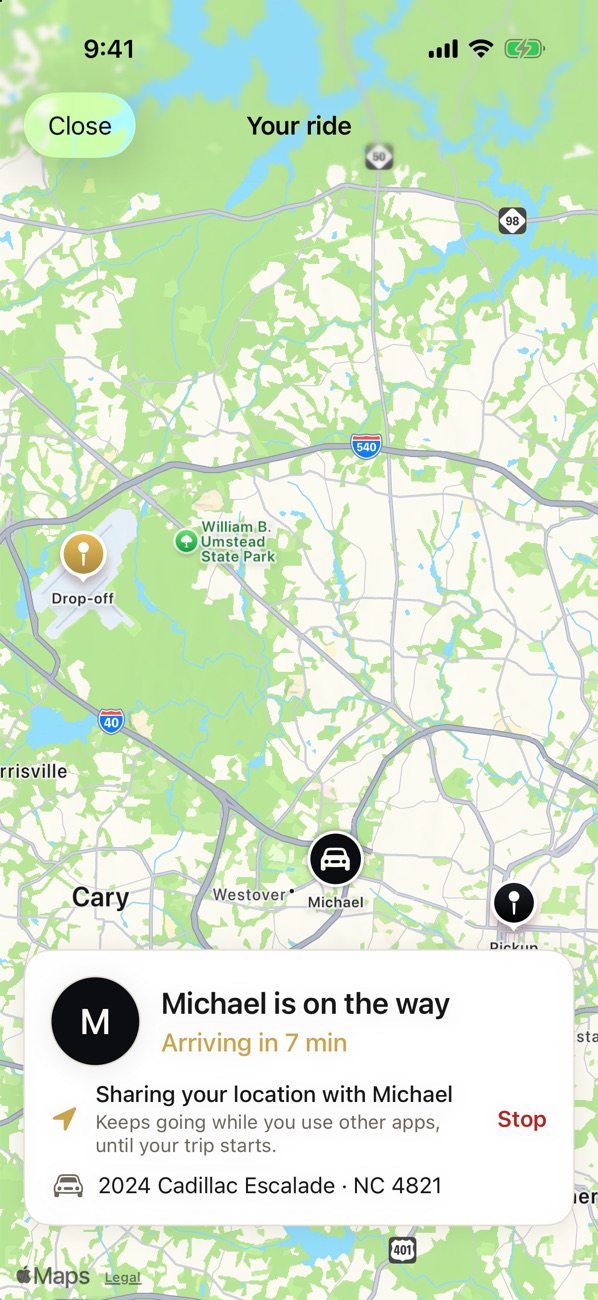
- The map shows the car, your pickup and your drop-off. The card gives your driver’s name and photo, how long until arrival (“Arriving in 7 min”), and the vehicle and license plate, so you know whom to look for.
- The position updates while the screen is open. If you leave the app, it catches up when you come back.
- Before the driver sets out you will see “We’ll show the car here once your driver sets out.”
Letting your driver see where you are
At airports, hotels and big venues, a driver can have trouble spotting you. You can let your driver see where you are. It is off until you turn it on.
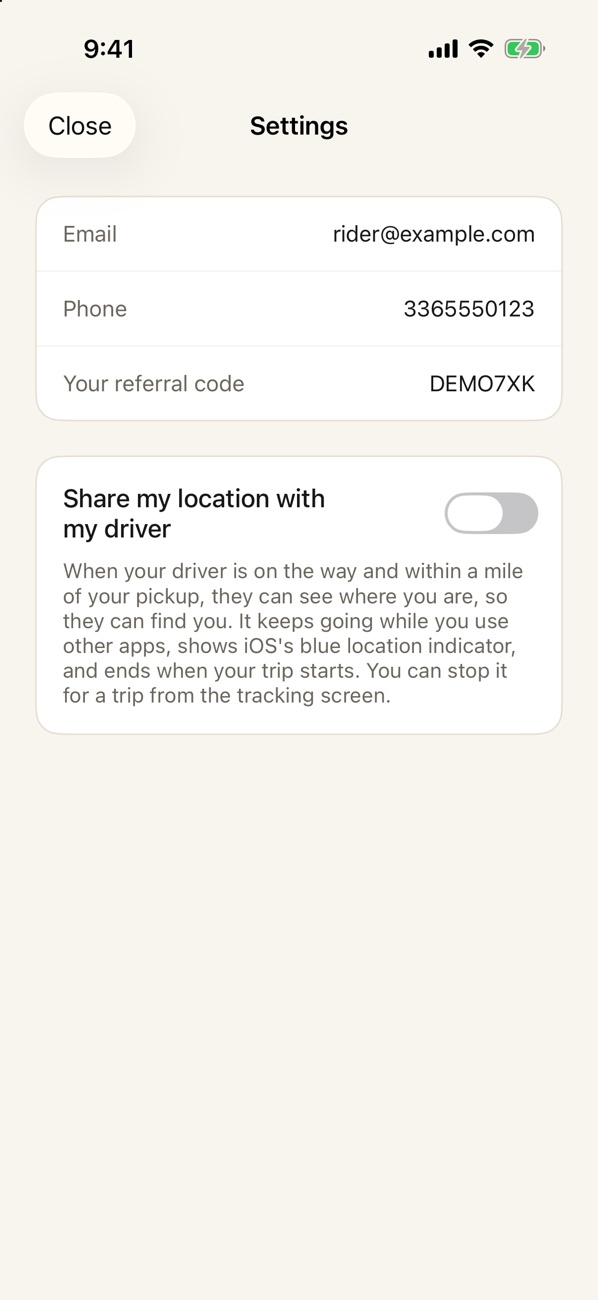
- Turn on Share my location with my driver in Settings (the “...” menu, then Settings), or tap Let [driver] see where you are on the tracking screen.
- When your driver is on the way and within about a mile of your pickup, your phone asks for location permission (choose Allow While Using App) and starts sharing.
- The tracking card says “Sharing your location with [driver]”. It keeps going while you use other apps (your iPhone shows its blue location indicator), and it stops by itself when your trip starts.
- Tap Stop on the tracking card any time to stop for that trip. Share again starts it again. Turn off the setting to stop for good.
Only your assigned driver sees where you are, and your position is deleted when the trip starts. To start sharing, open the tracking screen once while your driver is on the way (the notification takes you there).
My trips
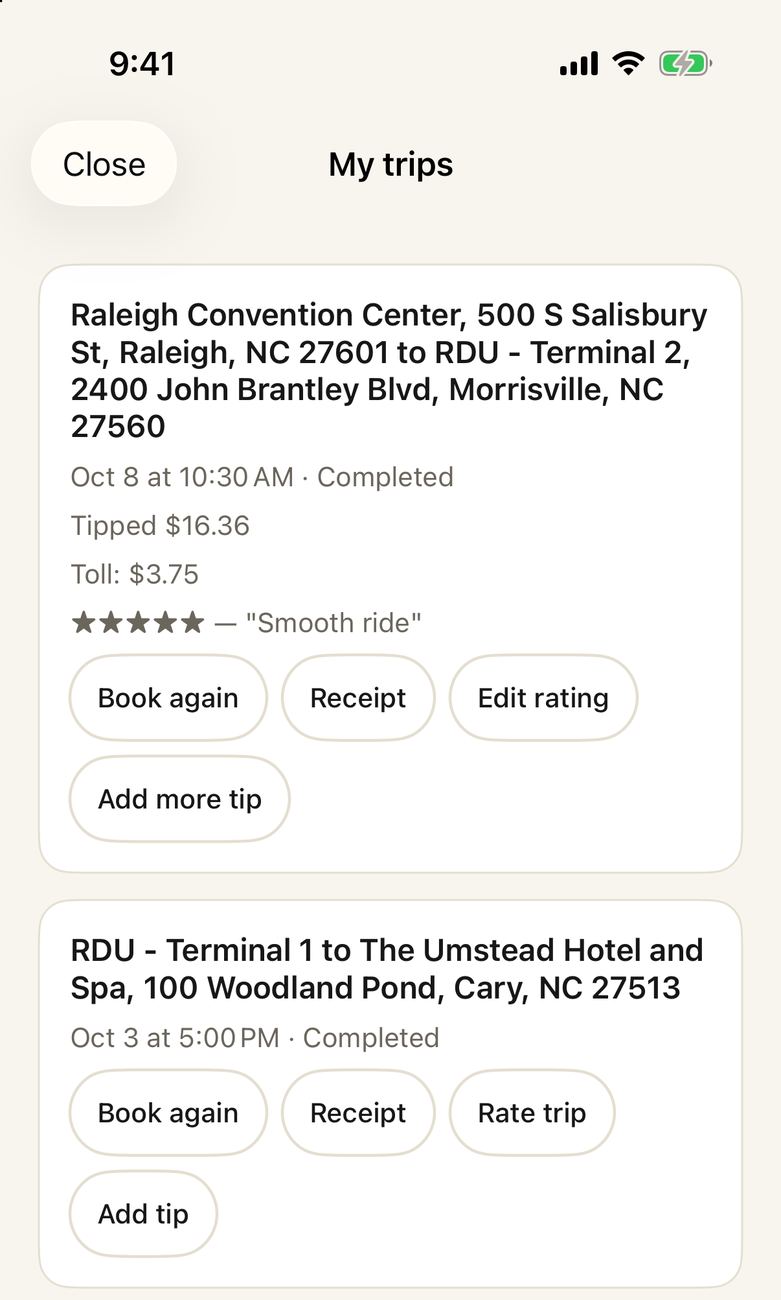
With an account, My trips on the home screen lists your 25 most recent rides with your car service: the route, when, the status, and any tip and toll charged. On each trip you will find the buttons that apply:
- Track an active trip.
- Book again: starts a new booking from the same route, passengers and vehicle. You get a fresh price and choose a new time.
- Receipt: a PDF receipt with your car service’s details, which you can save or share.
- Rate trip / Edit rating: stars and an optional comment, for a completed trip.
- Add tip / Add more tip: see Paying and tipping.
- Change and Cancel: see below.
Changing a scheduled trip
You can change a trip booked for later (the time, the addresses, the stops or the passengers) up to your car service’s free-cancellation cutoff. Tap Change on the trip, edit the booking, and review the changes.
- The price is worked out again by the same rules as a new booking.
- If the new price is higher, you must accept it before the change is made. Your card hold moves to the new amount.
- Your driver and your car service are told what changed. The trip shows “changed” in your list.
- After the cutoff, or for a trip booked for “now”, call your car service instead.
Cancelling a trip
Tap Cancel on a trip that hasn’t started and confirm Cancel ride. The card hold is released, and any tip you already paid is refunded. A trip booked for “now” can always be cancelled free. For a scheduled trip, your car service’s cancellation policy applies: cancelling at least their free-cancellation window before pickup is free, and cancelling later can carry a fee. Ask your car service if you are not sure what theirs is.
Your saved card
If your card can’t be charged. If your card can’t be authorized for an upcoming ride, we tell you (a notification, or a text or email) and try it again once a day until your pickup. Update your card here, then open My trips and tap Try payment again on that trip to run it straight away. The same button appears if a finished trip’s charge failed.
With an account you can keep one card per car service. My trips shows “Saved card: Visa ending in 4242” with Remove, which also removes it from the payment system. Only the card’s brand and last four digits are kept here; the full number never reaches MyPlacard. A guest has no saved card.
Promo codes and referring a friend
- Promo code. Type it in the booking form to see the discount in your fare. A code has its own dates and limits.
- Refer a friend. On the home screen, tap Refer a friend to send a link that carries your own referral code (it is also shown in Settings). A friend who opens it and creates an account has your code filled in for them.
Riding on a company account
If your company has an account with your car service, your rides are billed to the company, not to you. You won’t be asked for a card, and on a company billed by invoice there is no tip step at booking. The company’s administrators can see your name and what your trips cost. If your company pays tips, you only choose the amount.
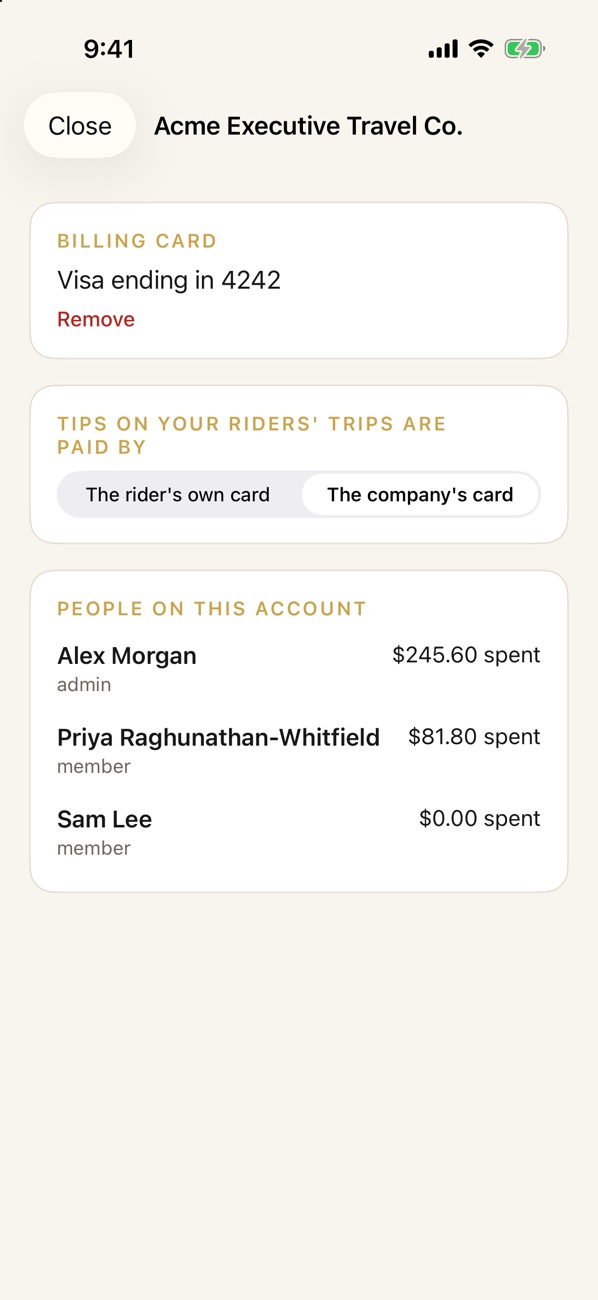
A company admin also has a Company button on the home screen: the company’s billing card, who pays tips (the rider’s own card or the company’s), and everyone on the account with what they have spent. Your car service adds and removes the people on the account.
Settings, privacy and your account
The “...” button at the top right of the home screen opens a menu:
- Switch to another car service you have used, or Another operator.
- Settings: your email, phone and referral code, and the Share my location with my driver switch.
- Privacy Policy, Terms of Service and Contact support, and the app version.
- Sign out and Delete account (when you are signed in).
Delete account removes your name, email, phone and saved card from your account, immediately and permanently. Trips you have already taken stay on file for your car service’s records, including your name, phone number and trip addresses, for 5 years, and those details are then removed. If you can’t open the app, see how to request deletion online.
The web app
Your car service’s link also opens a web booking page that works in any phone or computer browser, with no app. It does the same things: book as a guest or with an account, see your fare, pay and tip, and receive text updates. Your trips are under My journeys, with rebooking, receipts, ratings, tips, changes and cancelling, and Delete my account is at the bottom. The web page does not have the live tracking map or the push notifications, so use the app for those.
If something goes wrong
- I can’t find my car service. Check the code with them, or scan their QR code. Codes are short and not case-sensitive.
- I don’t see a fare. Pick both addresses from the suggestions (not just typed text) and fill in the missing line shown under Request ride.
- My card was declined, or I closed the card sheet. Your ride is still booked. Tap Pay now to try again, or call your car service.
- My driver is late or I can’t find them. Open the tracking screen to see the car, and turn on location sharing. The app can’t call the driver for you: call your car service.
- I didn’t get a notification. Check that notifications are allowed for MyPlacard in your phone’s settings, and that you ticked the text-message box if you want texts.
- I need a receipt. My trips, then Receipt on the trip.
- I was charged the wrong amount, or need a refund. Contact your car service: refunds are decided by them.
- I forgot something in the car. Contact your car service.
- For help with the app itself, email support@my-placard.com or use Contact support in the menu.
Quick start
- Install MyPlacard and enter your car service’s code.
- Tap Book a ride. Add pickup and drop-off, choose passengers and vehicle, and set the time.
- Check the fare, tap Request ride, and confirm.
- Choose a tip and enter your card. You are only charged when the trip is complete.
- Open Track your ride to follow your car. If you want, share your location with your driver.
- After the trip: rate it, add a tip, and find your receipt in My trips.